How to turn a photo
into a video on iPhone.
Start with a clear frame. Give it one motion. Review the result before saving.
By Top Apps LLC, the maker of Vidifier · November 6, 2026 · Based on the current App Store listing, app controls, and retained app demo assets.
What you need
Vidifier for iPhone, iOS 16 or later, an internet connection, and a photo you have permission to process. The app is free to download. Generating videos uses credits; read the cost, available balance, and any subscription offer in the app before submitting.
Choose your starting frame
Open Create and select a photo. Use one clear subject with room around it. A sharp, well-lit image gives you a clearer starting point than a blurry crop. A photo is the input to a new AI-generated scene, rather than a collection of hidden real video frames.
Describe one movement
Try a short direction that separates subject motion from camera motion:
Keep the camera still. A light breeze gently moves the subject's hair. Preserve the face and background.
This is a suggested prompt to try, not the recorded prompt for the demo below. For a camera move, try “Slowly push the camera toward the subject” instead. Combining many actions can make the result harder to control.
Review duration, resolution, and style
The current app offers 3, 5, or 7 seconds and 480p or 720p. A short 480p test can help you judge the motion before spending more credits. Use 720p when you want the higher of those two output resolutions. Check the actual credit cost shown for your selection.
Choose Original to avoid an added visual preset, or select Realistic, Cinematic, Dreamy, or Vintage. Preview the exact style instructions. “4K” and “HDR” wording in a preset describes a requested look; it does not change the selected output dimensions or encoding.
Optional Camera Lock asks for a static camera. It cannot guarantee that a person, face, or background will remain unchanged.
Generate and review
Submit the generation and keep the app connected. Reopen Vidifier to resume checking a processing job if necessary; force-quitting does not guarantee that checking will continue in the background.
Play the complete result. Look for facial changes, extra fingers, warping at the subject's outline, and background drift. If necessary, simplify the movement or use a clearer frame for another run. Each new run can produce a different result and may use more credits.
Save the version you want
Open the completed result in History to save or share it, or export a Live Photo on supported Apple devices. History and media are local to each device. Keep independent copies of results you want to retain. Optional generated sound is a separate step for eligible five- or seven-second videos with an active subscription.
An original input and output
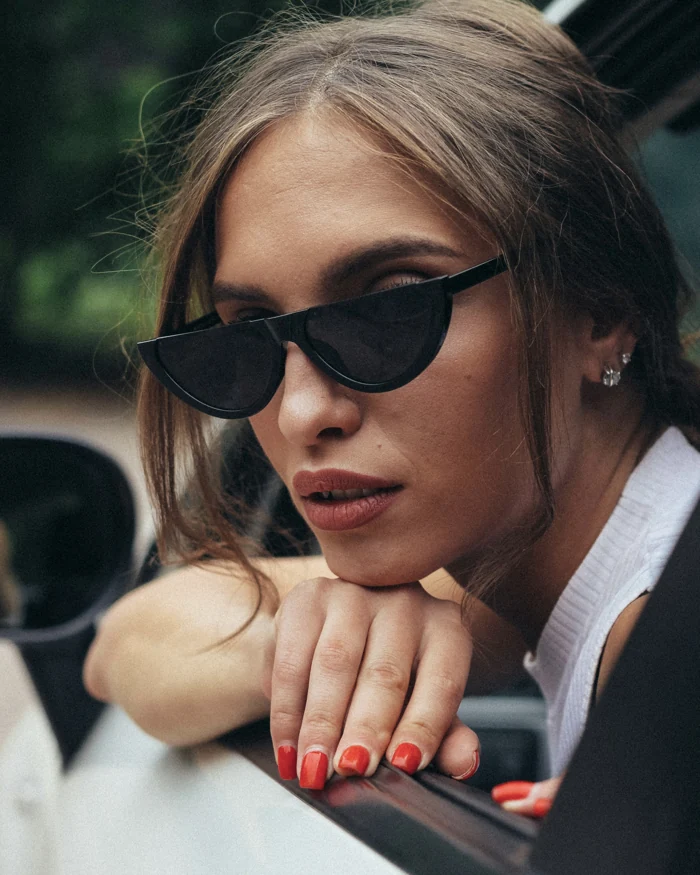
This matching photo/video pair ships in Vidifier's original demo asset collection. Its original generation prompt and settings were not retained. It illustrates one possible result, not a repeatable result for the suggested prompt above or a comparison against other generators.
When the result needs another take
- The face changes
- Use a sharper, unobstructed face and request less movement. Identity preservation is not guaranteed.
- The camera moves unexpectedly
- Try Camera Lock and remove camera-motion words from the prompt. Inspect the output rather than assuming the setting guarantees a fixed frame.
- The image is being edited instead of animated
- Use Create for video generation. Edit changes a still image; send that new frame into Create when you want to animate it.
Sources and checks
Product controls and requirements were checked against Vidifier's official App Store listing on November 6, 2026. The style preview uses the app's actual preset text. Generation quality, speed, and cost were not benchmarked against other apps for this tutorial.
Privacy Policy · Get support · Compare mobile photo-to-video workflows